Piso WiFi on Windows 10 and 11: How to Pause and Resume on a Laptop
http://10.0.0.1. Insert coins or a voucher, then click Pause Time to save minutes. Before you pay, turn off Random hardware addresses for that network so you can resume later.The buttons only work while your phone is connected to the Piso WiFi network.
Table of contents
Connect your laptop to the Piso WiFi
- Click the Wi-Fi icon on the taskbar (bottom right).
- Choose the Piso WiFi network and click Connect.
- Windows may show "Action needed" or open a browser automatically. Click it to see the portal.
- If nothing opens, start Chrome, Edge or Firefox and type
http://10.0.0.1.
Turn off "Random hardware addresses" first
Windows can give your laptop a random Wi-Fi address (MAC) for privacy. The vendo uses this address to remember your paid and paused time. If it changes, your time seems to disappear.
Windows 11
- Open Settings → Network & internet → Wi-Fi.
- Click the Piso WiFi network's properties.
- Set Random hardware addresses to Off.
Windows 10
- Open Settings → Network & Internet → Wi-Fi.
- Click the connected network.
- Turn Use random hardware addresses for this network to Off.
Do this before inserting coins. If you change it after paying, the vendo sees a new device.
Pause and resume on Windows
- Open
http://10.0.0.1while connected. - Click Pause Time. Your countdown stops and the internet is cut.
- To continue, connect again with the same laptop, open
10.0.0.1and click Resume.
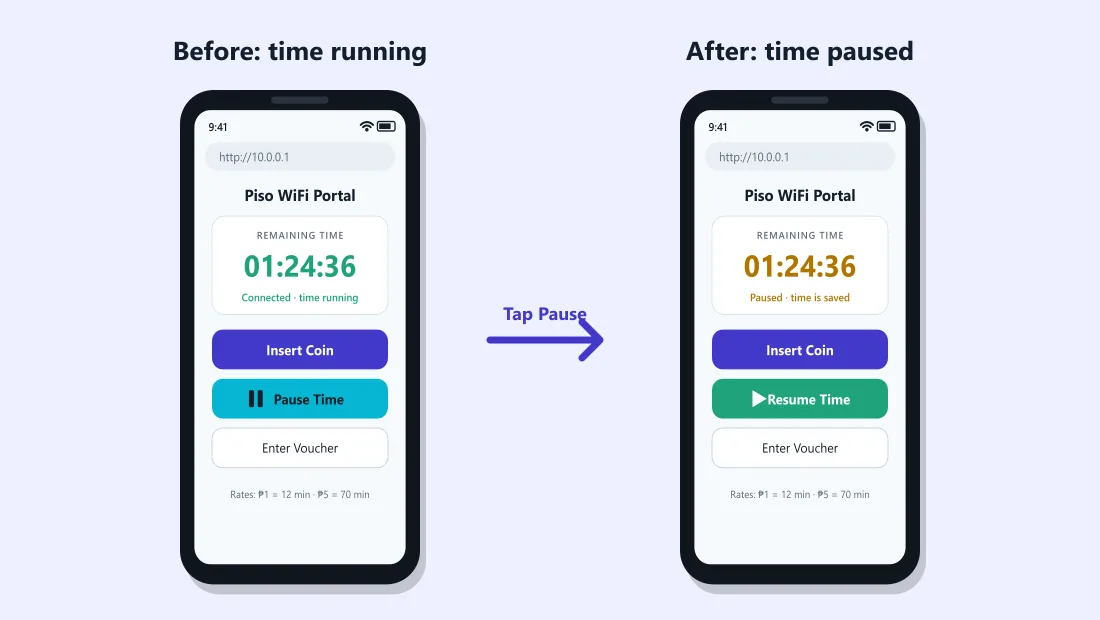
Time on your laptop is separate from time on your phone. Each device pays and pauses on its own.
Portal will not load on Windows?
Find the real portal address
Press Windows + R, type cmd and press Enter. Type ipconfig and press Enter. Under your Wi-Fi adapter, the Default Gateway is the portal address. Type it in your browser with http://.
Browser forces https
Chrome and Edge may switch to https and fail. Turn off Always use secure connections (Chrome) or Automatically switch to more secure connections (Edge) in the browser's privacy and security settings. Details in the Chrome guide.
VPN or custom DNS
Turn off VPN apps. If you set a custom DNS on the Wi-Fi adapter, switch it back to Automatic (DHCP) while using Piso WiFi.
Firewall or antivirus pop-ups
Some security software blocks unknown local pages. Allow the connection or temporarily pause the web shield while you use the portal.
Tips for laptop users
- Laptops download updates in the background. Pause Windows Update (Settings → Windows Update → Pause updates) to save your paid minutes.
- Set the Piso WiFi network as metered (network properties → Metered connection) so Windows and apps use less data.
- Close cloud sync apps like OneDrive or Google Drive if you only need to browse.
Frequently asked questions
Can I use Piso WiFi on a laptop?
Yes. Connect to the Wi-Fi, open http://10.0.0.1 in any browser, and pay or pause the same way as on a phone.
Why did my paused time disappear on my laptop?
Windows may have used a random hardware address. Turn it off for the Piso WiFi network before paying.
How do I find the portal address on Windows?
Run ipconfig in Command Prompt. The Default Gateway is the portal address.
Does laptop time share with my phone?
No. Each device has its own time and pause.
Related guides
 Piso WiFi Pause TimePause your Piso WiFi time at 10.0.0.1 and resume later without losing minutes. Step-by-step gui…
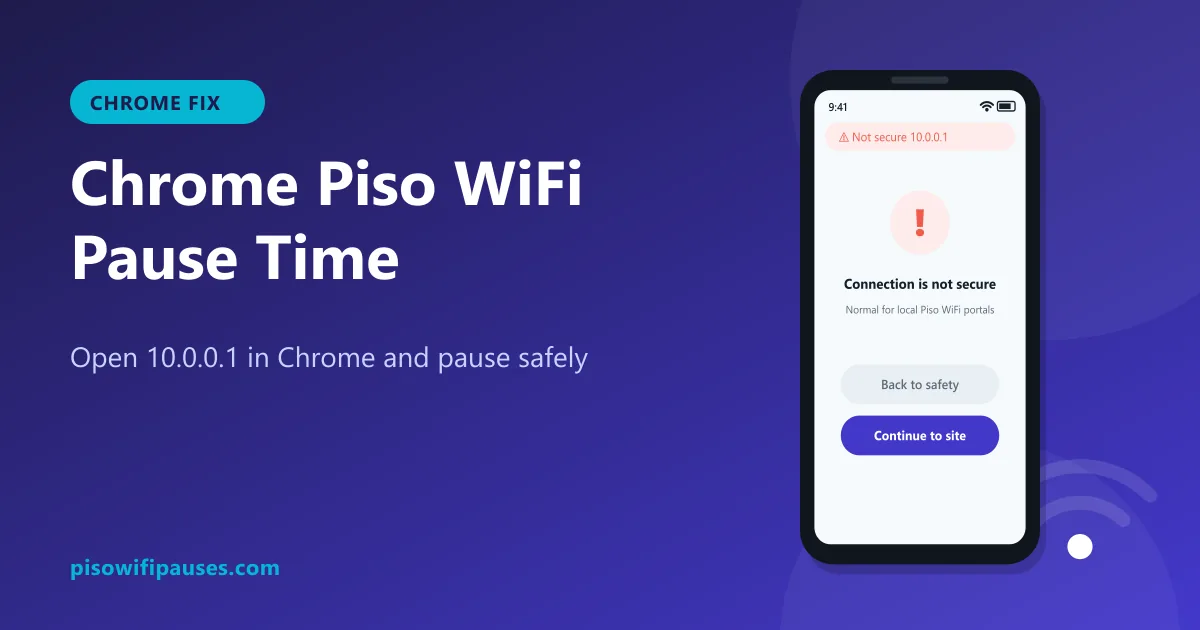 Chrome Piso WiFi Pause TimeChrome blocking http://10.0.0.1 or showing "Not secure"? Fix it in seconds and pause your Piso …
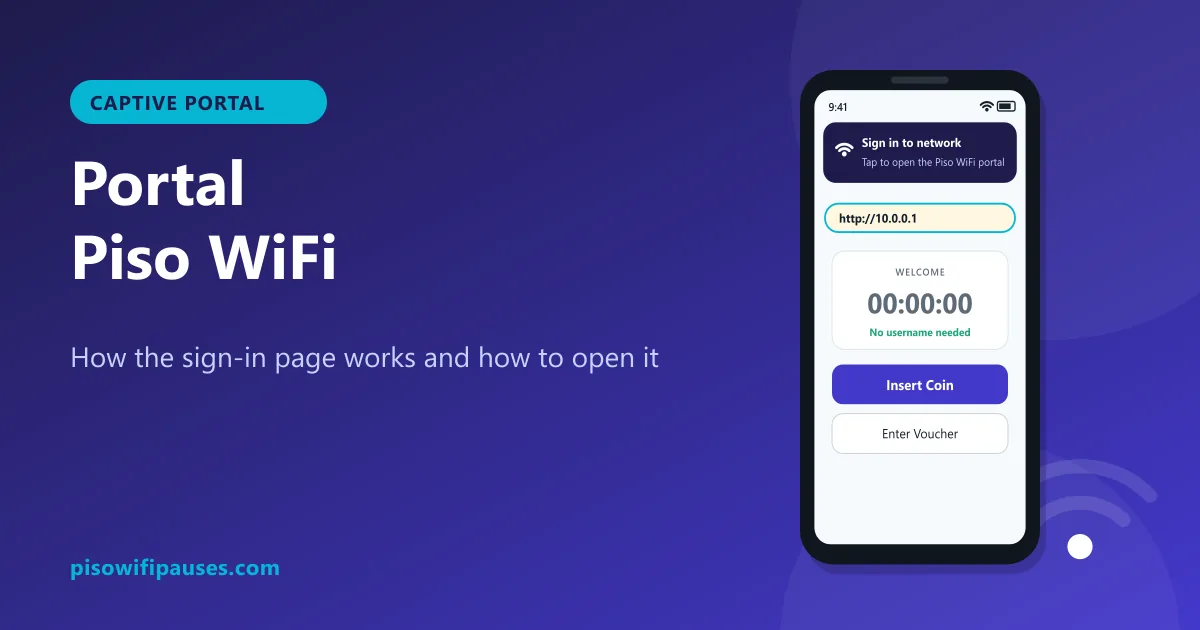 Portal Piso WiFiWhat the Piso WiFi portal is, why the "Sign in to network" page appears, how to open it manuall…