Chrome Piso WiFi Pause Time: How to Open 10.0.0.1 and Pause in Chrome
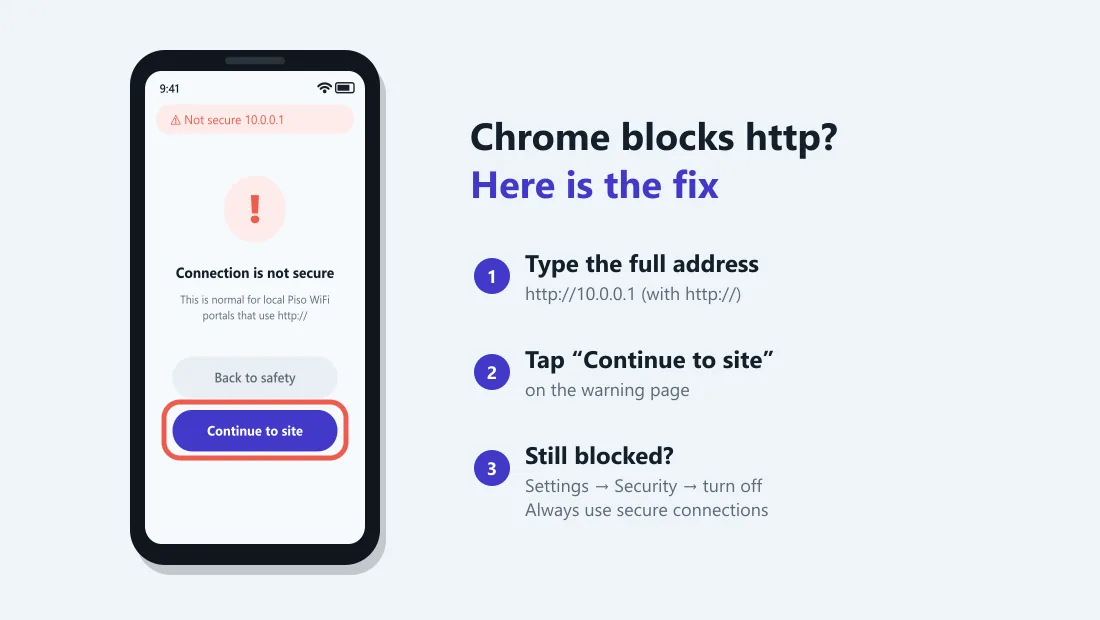
http://10.0.0.1 (with http://) in the address bar. If Chrome says "Not secure" or "Connection is not secure", tap Continue to site. Then tap Pause Time on the portal. If Chrome keeps switching to https, turn off Always use secure connections in Chrome settings.The buttons only work while your phone is connected to the Piso WiFi network.
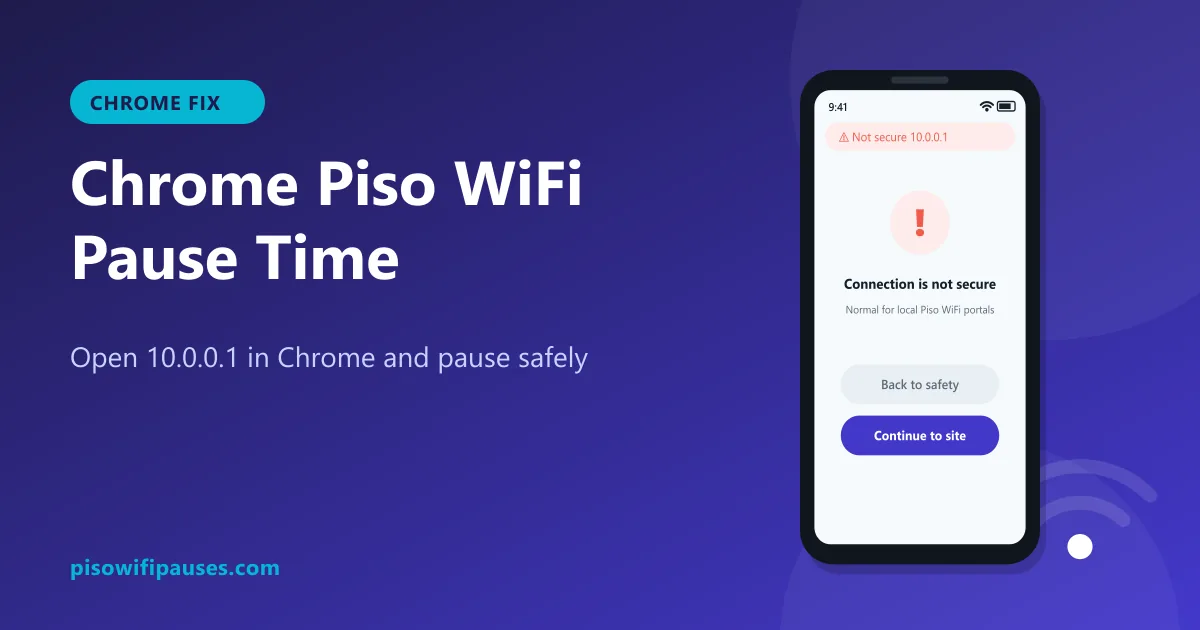
Table of contents
Why Chrome has trouble with Piso WiFi portals
Almost every Piso WiFi vendo shows its portal on a plain http:// page at a local address such as 10.0.0.1. Modern Chrome prefers secure https:// pages. When you type only 10.0.0.1, Chrome may first try https://10.0.0.1, wait, and then show an error or a "Not secure" warning.
This is not a virus and not a problem with your phone. The page is local, inside the vendo near you, so it does not use the security certificate that public websites use. Once you tell Chrome to continue, the portal works normally and you can insert coins, pause and resume.
How to open 10.0.0.1 in Chrome (step by step)
- Turn off mobile data. Otherwise Chrome may use your SIM data and send you to a Google search.
- Connect to the Piso WiFi network in your Wi-Fi settings.
- Open Chrome and tap the address bar. Type
http://10.0.0.1exactly. Includehttp://and do not addwww. - If you see "Your connection is not secure" or "Not secure", tap Continue to site (on some versions, tap Advanced first).
- The portal opens. Check your remaining time and tap Pause Time to save it.
Turn off "Always use secure connections"
If Chrome keeps changing your address to https:// and never shows the portal, the HTTPS setting is the reason. Turn it off while you use Piso WiFi:
Chrome on Android
- Tap the ⋮ menu at the top right, then Settings.
- Open Privacy and security, then Security (on some versions the switch is directly in Privacy and security).
- Turn off Always use secure connections.
- Go back and open
http://10.0.0.1again.
Chrome on Windows or Mac
Click ⋮ → Settings → Privacy and security → Security, then switch off Always use secure connections. Our Windows guide has more laptop tips.
Chrome on iPhone
Chrome on iPhone follows Apple's network rules. If the portal does not open, close the small "Log in" window, open Safari once to http://10.0.0.1, then try Chrome again.
Chrome Piso WiFi pause time on Samsung phones
Samsung phones come with both Samsung Internet and Chrome. Either works. If Chrome is giving trouble:
- Open Samsung Internet and type
http://10.0.0.1. It usually shows the portal without extra warnings. - Check Settings → Connections → More connection settings → Private DNS and set it to Automatic. A custom Private DNS can block portals in every browser.
- Turn off any VPN, ad-blocker or data-saving app.
Other Chrome problems and quick fixes
Chrome opens Google search results instead of the portal
You typed the address in the search box, or added a typo. Type http://10.0.0.1 in the address bar. Wrong addresses like 10.0.0.0.1 or 10001 will always open Google. See 10.0.0.0.1 explained.
The page loads forever
Make sure you are still connected to the Piso WiFi and close to the vendo. Turn Wi-Fi off and on, then reload. A weak signal can connect but fail to load pages.
The timer shows old numbers
Chrome may be showing a saved copy. Pull down to refresh, or open the page in a new tab. You can also clear cached images and files for the last hour in Chrome settings.
Buttons do nothing when tapped
Some portals need JavaScript and pop-ups allowed. Tap once and wait a few seconds. If nothing happens, try Incognito mode or another browser.
How to pause and resume in Chrome
- With the portal open at
http://10.0.0.1, tap Pause Time. The timer stops and your internet is cut. - When you want to continue, reconnect with the same phone, open Chrome and go to
http://10.0.0.1again. - Tap Resume. Your saved minutes start counting.
The vendo remembers your phone by its Wi-Fi address. If your phone uses a random (private) MAC address, your paused time can seem to disappear. Read how to fix private MAC address before buying time.
Make it one tap next time
Once the portal opens, tap ⋮ → Add to Home screen in Chrome. You get an icon that opens 10.0.0.1 directly, so you never mistype it again. More in our Piso WiFi pause time app guide.
Frequently asked questions
Why does Chrome say "Not secure" on 10.0.0.1?
The Piso WiFi portal is a local http page without an https certificate. It is normal. Tap Continue to site.
How do I stop Chrome changing 10.0.0.1 to https?
Turn off Always use secure connections in Chrome Settings, Privacy and security, Security. Then type http://10.0.0.1 again.
Can I pause Piso WiFi time in Chrome?
Yes. Open http://10.0.0.1 in Chrome and tap Pause Time. Resume later on the same phone.
Which browser is best for Piso WiFi?
Any modern browser works. If Chrome gives warnings, Samsung Internet or Firefox often open the portal faster.
Is it safe to continue to an http site?
For the local Piso WiFi portal, yes. Never enter passwords for Facebook, Google or GCash on an http page.
Related guides
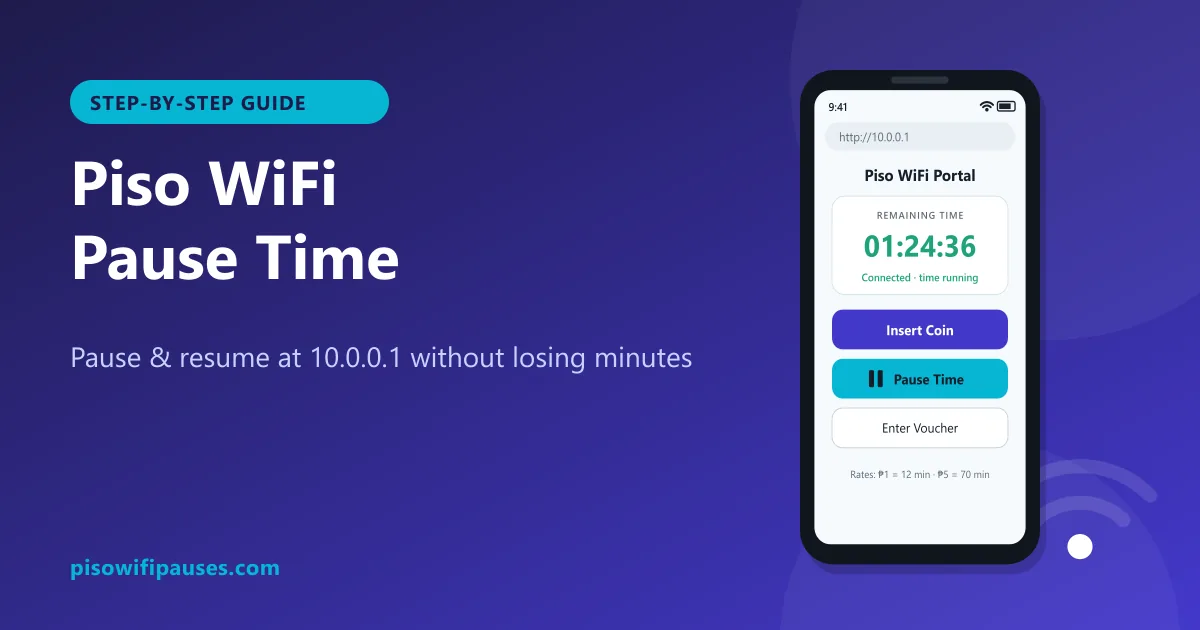 Piso WiFi Pause TimePause your Piso WiFi time at 10.0.0.1 and resume later without losing minutes. Step-by-step gui…
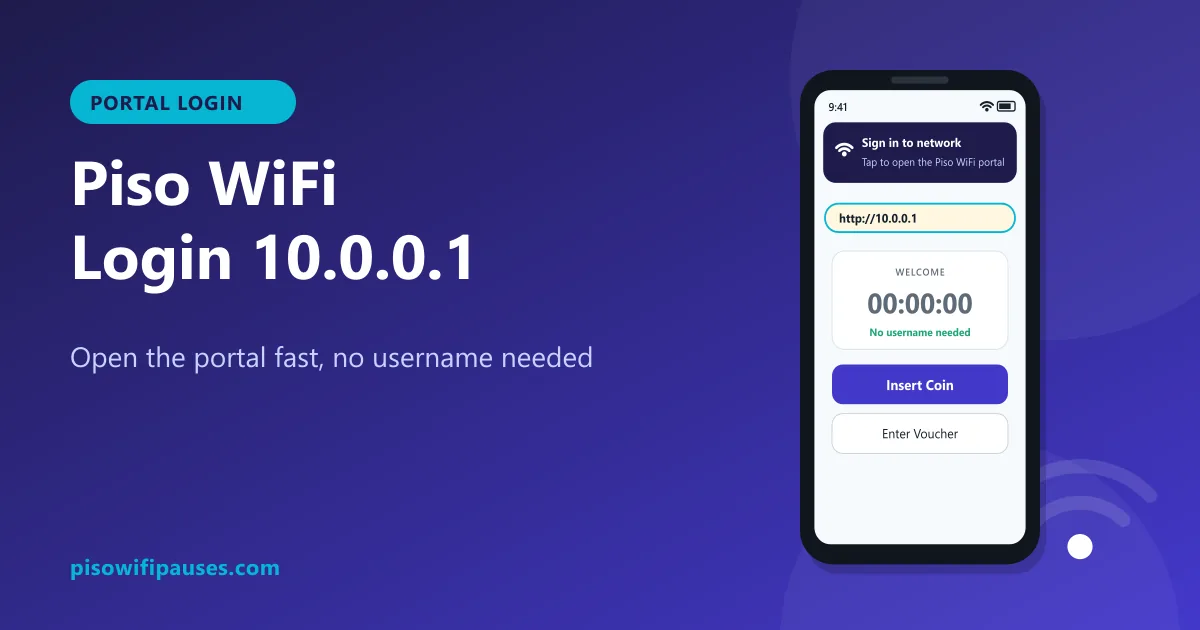 Piso WiFi LoginHow to log in to the Piso WiFi portal at 10.0.0.1 as a customer or owner. Fix a portal that wil…
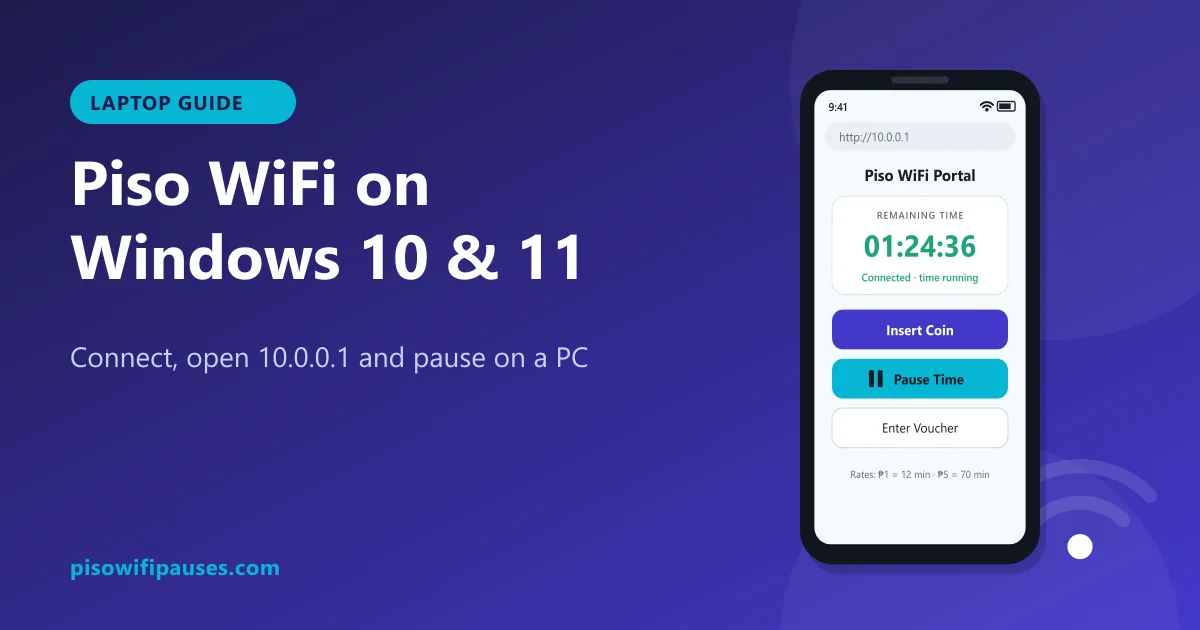 Piso WiFi on WindowsUse Piso WiFi on a Windows 10 or 11 laptop: connect, open 10.0.0.1, pause and resume, turn off …